Fly Go 4 Drone Camera Control
Apponfire Co. Ltd.Photography
4.3350.00 Reviews
- Version
- 2.0.1
- Installs
- 1.00M
- Age Rating
- Everyone
Screenshots
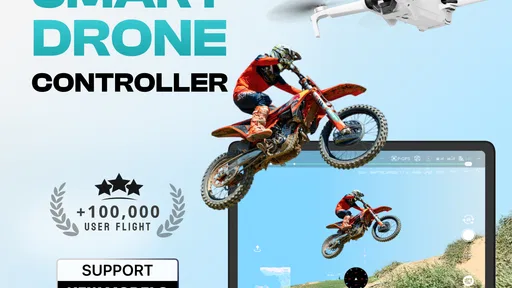
Our Review of Fly Go 4 Drone Camera Control
 Analysis by Appyee
I’d treat Fly Go 4 as a possible control app for a compatible drone, not as a replacement for learning the basics of safe flying. The first useful step is to check whether your particular drone is supported before heading outside. That small bit of preparation matters more than any promise of an easy launch: a controller app can only help if it communicates with the hardware you actually own.
What to expect before you fly
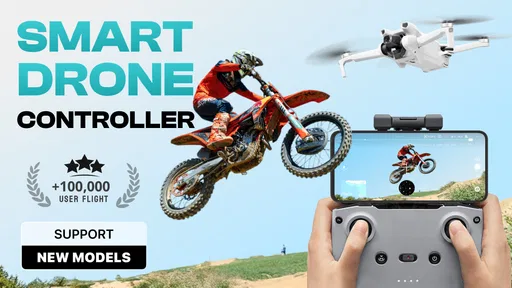
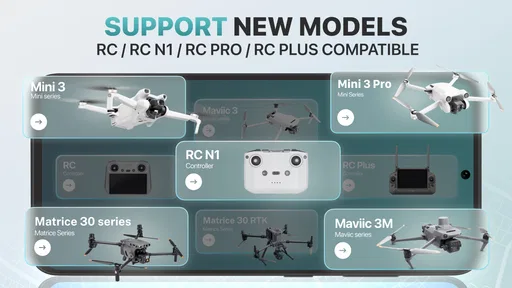
Fly Go 4 is a free photography app from Apponfire Co. Ltd. The app is aimed at controlling drone cameras, and its store information describes support for more than forty drone cameras alongside a zone map. It has a 4.4 average from around 14,000 ratings, with over 100,000 installs. Those figures suggest it has found an audience, but they don’t guarantee that it will work with every drone in a broad product family. I’d check the exact model rather than relying on a similar name or appearance.
The app is rated for Everyone and is currently at version 1.3.0; it was released on November 25, 2024, and requires Android 8.1 or later. The download is free, with in-app purchases ranging from $6.99 to $69.99 per item. I’d start with the free experience and confirm that basic connection and camera control suit your setup before considering any paid option. For a casual flyer, paying before establishing compatibility would be an unnecessary gamble.
Compared with using a drone maker’s own controller app, a third-party option like this is most interesting when you want one place to try controlling equipment across different models. The trade-off is that compatibility and control details deserve extra attention: a manufacturer’s app may be the more predictable choice for a single drone, while Fly Go 4 is worth investigating if your camera model is among the supported devices. It is not a reason to assume that every feature behaves identically across hardware.
A calmer first setup
Before connecting, I’d put the drone on a stable surface, make sure its battery is ready, and keep the phone close enough to handle without taking my eyes off the aircraft. I’d also look up the exact model and its own setup instructions rather than guessing from the app’s broad compatibility description. A first session is a poor time to troubleshoot several unknowns at once, so I’d avoid changing multiple settings before I know the basic connection works.
Once installed, open the app and follow the prompts for connecting the drone. If the connection does not happen immediately, I’d pause and check the drone’s own startup sequence, the selected model, and any instructions supplied with its controller. Repeatedly tapping through menus can make it harder to tell what changed. I’d make one adjustment at a time and confirm whether the app recognizes the device before moving on.
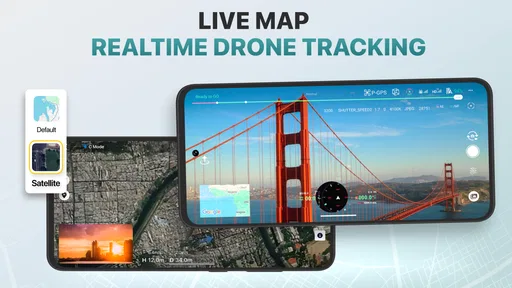
The zone map is a useful reason to look around the app before takeoff, but I would treat it as an aid rather than permission to fly anywhere. Local rules, the site itself, and the drone’s instructions still matter. I’d check the intended area while I’m standing safely on the ground, then choose a simple, open place for the first test rather than discovering a restriction after the aircraft is airborne.
Make the first flight deliberately simple
For a first meaningful success, I’d aim for a short, controlled test: connect, confirm the camera view if available for the paired drone, make a small movement in a clear area, and bring the aircraft back under control. The goal is not an impressive clip. It is learning which on-screen controls respond, how the view changes, and whether the drone behaves as expected before adding distance or complexity.
A practical everyday scenario would be checking a garden or taking a view of a family gathering from a safe, permitted spot. I’d test the camera framing while stationary or hovering only if the drone’s own guidance supports that, then make one small composition adjustment at a time. This helps separate camera operation from flight control: if the framing is wrong, I can correct the camera rather than steering the whole aircraft unnecessarily.
For a first outing, I’d avoid relying on any automated movement or assuming a return function is available on my specific setup. Learn the controls and the manufacturer’s safety procedures first. If the app offers choices that are unfamiliar, I’d leave them alone until I can identify what they do and whether they apply to the connected drone. Knowing how to stop and regain control is more valuable than trying every feature on day one.
Where confusion can creep in
The biggest potential source of frustration is treating “supports many drone cameras” as a guarantee for a particular model. Similar-looking drones can use different control systems, and a connection problem does not necessarily mean the phone or app is faulty. I’d verify the model name carefully and use the drone’s supplied setup guidance when the app’s prompts do not match what I see.
Another point to keep straight is the difference between controlling the camera and controlling the aircraft. A camera adjustment can change the shot without changing the flight path; steering the drone to fix every framing issue can create needless movement. I’d practice each kind of control separately in a safe setting. That simple habit makes it easier to understand what the screen is asking me to do.
Battery awareness is also a matter of using the right source of information. I would watch whatever status the app and the drone make available, while keeping the drone’s own guidance in mind and leaving time to return safely. I would not stretch a first flight simply because the phone still appears connected. A conservative landing is a better first result than squeezing in one more shot.
Who will get the most from it
I can see Fly Go 4 appealing to someone who already owns a compatible drone and wants to explore phone-based camera control without paying just to install the app. It may also suit a hobbyist who is comparing control options for supported equipment and is comfortable checking model compatibility before flying. The zone map gives a reason to plan a location in advance, especially when the point of a trip is to capture a particular view rather than simply take off at random.
I’d be less inclined to recommend it to someone who expects a universal controller for any drone, or who wants to fly without first reading the aircraft’s instructions. If you depend on a particular manufacturer’s workflow, have a drone that is not listed as compatible, or need a feature you cannot verify on your setup, the official app or controller is the safer place to start. And if you only want to edit photos already on your phone, a conventional photo editor is a more direct fit than a drone-control app.
Fly Go 4 is free to download, which makes trying it sensible when your model is supported, but in-app purchases mean the overall experience may involve optional spending. I’d decide what I actually need before buying anything: first establish that the aircraft connects, then see whether the free tools cover the intended flight. That order avoids paying for extras before confirming the most important part works.
Have you ever been curious about taking your drone flying skills to the next level? Well, I’ve just had a go with the Fly Go 4 Drone Camera Control app, and let me tell you, it’s quite the adventure! Whether you're a seasoned drone pilot or just starting out, this app might just be the wingman you need. Let’s dive into what makes this app tick.
Getting Started with Fly Go 4
First off, setting up the Fly Go 4 Drone Camera Control was a breeze. After a quick download from the app store, I was up and running in no time. The interface is super user-friendly, which is a huge plus if you’re like me and sometimes get lost in overly complicated menus. Everything is laid out intuitively, so you won’t be fumbling around when you’re itching to get your drone up in the air.
Once you’ve got it installed, connecting your drone is straightforward. The app supports a wide range of drone models, so you’re likely covered. I was impressed with how seamlessly it integrated with my device; it felt like they were old pals reuniting. A couple of taps and you’re ready to launch!
Features that Soar Above
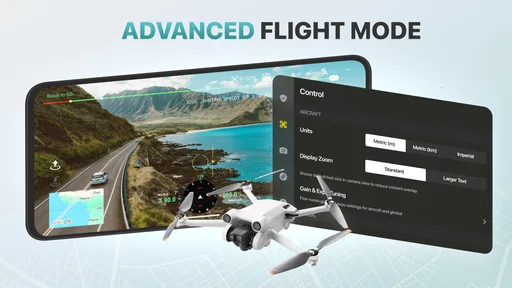
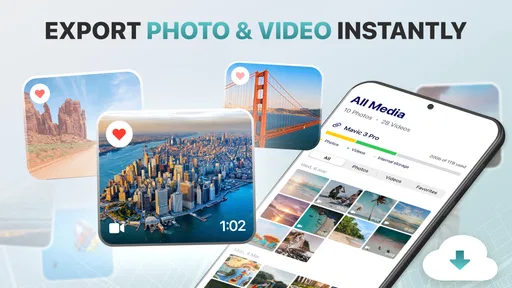
Now, let’s talk features. This app is packed with functionalities that make flying drones not just easier but more fun. One of the standout features is the camera control. You can adjust the camera angle, take stunning aerial shots, and even shoot videos with just a few taps. If you’re into photography, this app gives you the tools to capture breathtaking views from above.
The app also has a nifty GPS tracking system. This is especially handy if you’re exploring new areas or want to ensure your drone doesn’t wander off. The GPS accuracy is top-notch, so you can fly with peace of mind. Plus, there’s a return-to-home feature that acts like a loyal homing pigeon, bringing your drone safely back to you when needed.
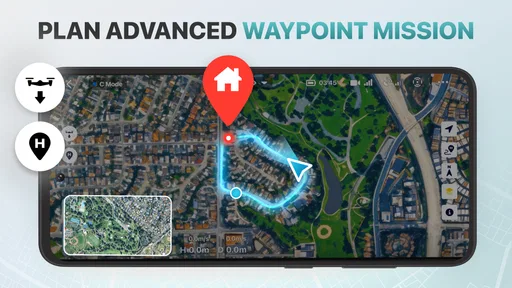
Another cool feature is the flight planning tool. You can set waypoints and let the drone do the work. It’s like setting your drone on autopilot, and it’s perfect for capturing smooth, cinematic shots without having to manually steer the whole time.
Performance in the Sky
In terms of performance, the app handles beautifully. The controls are responsive, and there’s minimal lag, which is crucial when you’re maneuvering a flying device. The real-time video feed is clear, and I didn’t experience any annoying dropouts during my flights.
Battery management is another aspect where this app shines. It keeps you updated on your drone’s battery status, so you’re not caught off guard mid-flight. The alerts are timely, ensuring you have ample time to bring your drone back to safety before the juice runs out.
Is Fly Go 4 for Everyone?
While the Fly Go 4 Drone Camera Control app is packed with features, it’s also accessible to users of all skill levels. Beginners will appreciate the guided tutorials and easy-to-understand prompts, while experienced pilots will love the advanced settings that let you tweak every little detail.
If there’s one downside, it’s that some advanced features might require a bit of a learning curve. But hey, that’s part of the fun, right? Exploring and mastering new tools is what makes flying drones such a captivating hobby.
Final Thoughts
So, is the Fly Go 4 Drone Camera Control app worth a download? In my book, absolutely. It’s a comprehensive tool that enhances the drone flying experience, making it more enjoyable and less stressful. Whether you’re capturing beautiful sunsets, surveying land, or just having fun, this app has got your back.
If you’re eager to take your drone adventures to new heights, give this app a whirl. You might just find yourself flying higher and farther than ever before. Happy flying!
Privacy and Permissions
See what permissions an app requests and how it handles your data.
- Location
- approximate location (network-based), precise location (GPS and network-based)
- Phone
- read phone status and identity
- Photos/Media/Files
- read the contents of your USB storage, modify or delete the contents of your USB storage
- Storage
- read the contents of your USB storage, modify or delete the contents of your USB storage
- Wi-Fi connection information
- view Wi-Fi connections
- Device ID & call information
- read phone status and identity
- Other
- view network connections, pair with Bluetooth devices, access Bluetooth settings, change network connectivity, connect and disconnect from Wi-Fi, full network access, close other apps, control vibration, prevent device from sleeping, Google Play license check
Verdict
Strengths of Fly Go 4 Drone Camera Control
- Easy-to-use interface for beginners.
- High-quality video recording options.
- Real-time flight telemetry display.
- Customizable control settings.
- Seamless integration with social media.
Limitations of Fly Go 4 Drone Camera Control
- Limited compatibility with older devices.
- Requires strong internet connection.
- Occasional lag during live streaming.
- Battery drains quickly during use.
- Subscription needed for premium features.
Other Releases by Apponfire Co. Ltd.
View All
KeyConnect Digital Car Key
Auto & Vehicles4.6
Similar Picks in This Category
View All
Google Photos
Google LLC4.4

Gallery
Google LLC4.2

Picsart AI Photo Editor, Video
PicsArt, Inc.3.9

B612 AI Photo&Video Editor
SNOW Corporation4.1

BeautyPlus-Selfie Photo Editor
PIXOCIAL TECHNOLOGY (SINGAPORE) PTE. LTD.4.5

Remini - AI Photo Enhancer
Bending Spoons4.1
Frequently Asked Questions
What devices are compatible with Fly Go 4 Drone Camera Control?
Fly Go 4 Drone Camera Control is compatible with most Android and iOS devices that support Bluetooth and Wi-Fi connectivity. It is essential to check the app’s compatibility with your specific drone model, as some features might only be available on newer or specific devices. Always ensure your operating system is updated for optimal performance.
Does Fly Go 4 Drone Camera Control require an internet connection?
While an internet connection is not required for basic drone flying and camera functions, certain features like real-time map updates and cloud storage access do need internet connectivity. It’s recommended to have a stable connection when using these features to ensure accurate data and smooth performance.
What are the key features of Fly Go 4 Drone Camera Control?
Fly Go 4 offers a range of features including real-time video streaming, customizable flight paths, and advanced camera controls. Users can benefit from automated flight modes, GPS tracking, and obstacle detection. The app also provides post-flight analytics and easy sharing options for captured media.
Is Fly Go 4 Drone Camera Control beginner-friendly?
Yes, Fly Go 4 is designed with user-friendliness in mind, offering intuitive controls and a clean interface suitable for both beginners and experienced drone pilots. The app includes tutorials and guided flight modes to help new users get accustomed to flying their drones safely and effectively.
Are there any in-app purchases or subscriptions in Fly Go 4 Drone Camera Control?
Fly Go 4 is free to download, but it does offer in-app purchases for advanced features and functionalities. These may include premium flight modes, additional camera filters, and extended cloud storage options. Users can choose to purchase these features individually or subscribe for a comprehensive package.
